

Homework
Simple assignment & homework tracking
0
Assignment Tracker or Homework Tracking
Assignment Tracker (homework tracking) allows you to set & track student homework assignments and display the status of those assignments.
You can add homework via any session for a student or via the student record. Similarly, assignments and their status is visible to the parent, via their login.
1
Enter
Add Homework Assignment
The first stage of assignment tracker is adding one! A homework assignment can be added to the session record in Oases when the work or quiz is given to the student. Say for example they need to finish a worksheet from today’s session. Therefore, it can be added as homework, helping keep everything up to date.
General assignments can also be added to your student records directly. Furthermore, you can add something that the parent or customer needs to do. For instance, sign an allergy form.
2
Details
Homework Info
Adding a homework assignment tracker includes:
- Assignment Name
- Date Assigned
- Due Date
- Turned In Date
- Tutor Name
- Number of Questions
- Questions Correct
- Notes or Instructions
- Document attachments
3
View
View & Edit
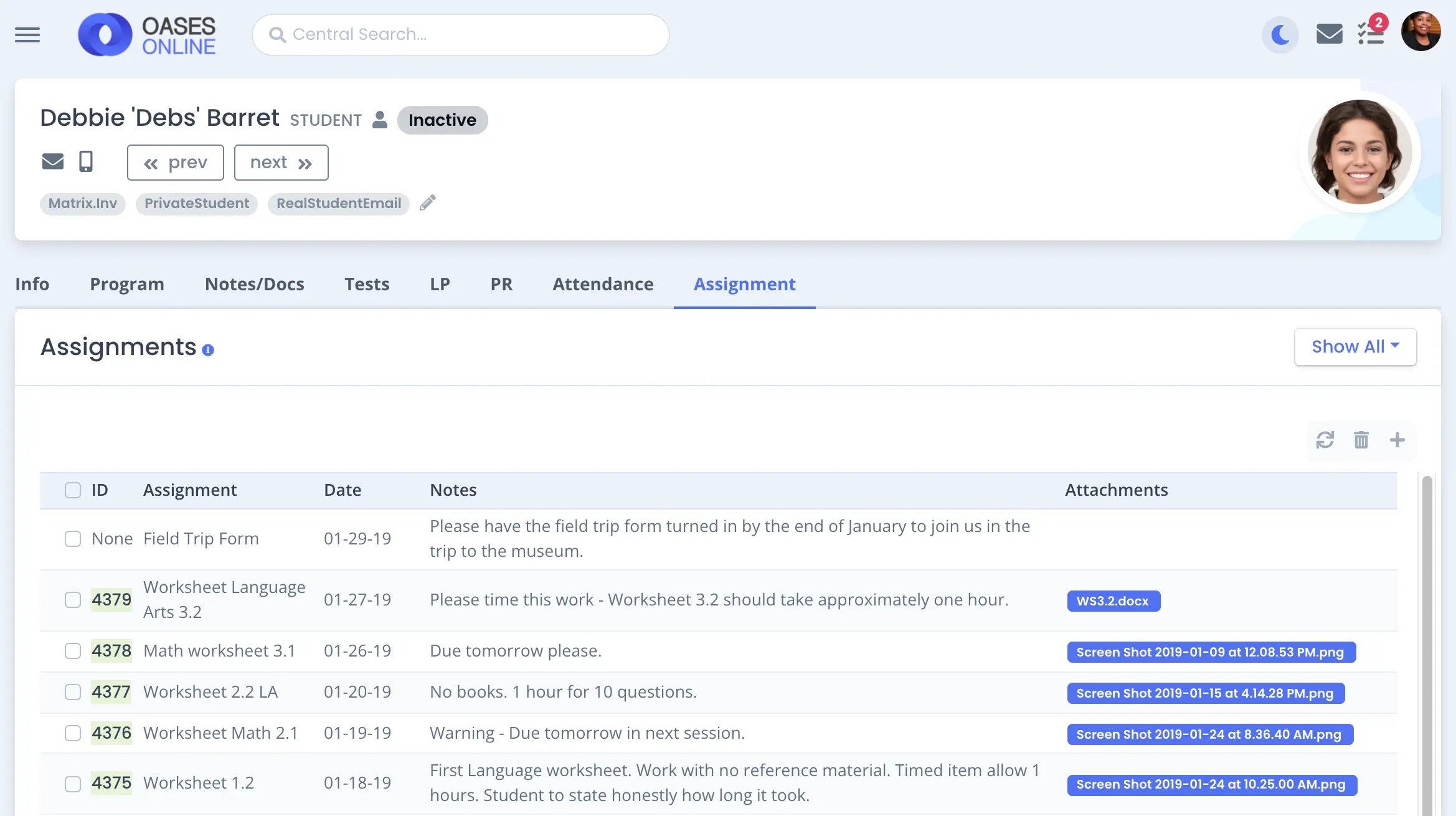
Helpfully, you don’t have to hunt around for a particular homework assignment. For example, you need to close out last week’s homework.
Additionally, any session for a student will show all assignments from any session for that student. Furthermore, for an assignment tracker, they are also all collated in the student record.
Finally, we give you filters to see open, past due and completed assignments.
4
Tracking
Homework Tracking
Assignment Tracker
In addition to filtering the homework list in a student record, you can create reports to help you with homework tracking.
Furthermore, any reports you create for homework assignment information gives dates and allows you to monitor tutor performance too. Thus, giving you an overall view of whether students and tutors are up to date.
5
Customer View
Customer View
Your customers and parents with a login can also view homework helping them to track all information. Helpfully, they too are able to filter each homework assignement by:
- Student
- Completed
- Past Due
- Open
Additionally, your admin team can add simple assignments for the parent to perform. For example, include items such as completing paperwork for your organization so you are not emailing back and forth.
Frequently Asked Questions
What is the Oases Assignment Tracker and how does it work?
The Oases Assignment Tracker allows tutors and admins to log homework assignments directly from a session record or from a student’s profile. Each assignment entry captures the name, date assigned, due date, turn-in date, tutor name, number of questions, questions correct, notes, and any document attachments. Assignments are visible across all sessions for that student, keeping everyone on the same page.
Can parents see their student's homework assignments through Oases?
Yes. Parents and customers with a login can view all homework assignments from their portal, including the status of each assignment (open, past due, or completed). Parents can filter the list by student, completed, past due, or open, making it easy to stay on top of their child’s workload without contacting the tutor directly.
Can Oases be used to assign tasks to parents as well as students?
Yes. The Assignment Tracker is not limited to student homework — admins can also add items for parents or customers to complete, such as signing a form or submitting required paperwork. This keeps all pending actions organized in one place and eliminates back-and-forth emails about what needs to be done.
Can the Assignment Tracker be used to monitor tutor performance?
Yes. The Assignment Tracker includes reporting tools where you can run reports on homework assignment data by date, which also provides insight into tutor consistency — for example, whether tutors are setting and recording assignments regularly. This gives you an overall view of whether students and tutors are staying up to date on their commitments.
How does the Assignment Tracker help tutoring centers stay organized?
All assignments for a student are consolidated in their record and visible from any of their session views — you never have to search across different tools or emails to find a specific piece of homework. Filters for open, past due, and completed assignments make it quick to close out last week’s work or identify students who may need a follow-up.
So What’s Next?
Still have questions? Learn more about Oases tutoring management system, call us at +1-866-327-0035 or:
Book your demo time now
Use our online booking system to pick a time for a no commitment demonstration that suits you. Quick and easy!
Book a DemoOverview Pages
Sales & Marketing Tools
Scheduling & Tracking Tools
Accounting Tools